Welcome to our Knowledge Base
Install Portainer on Synology NAS
Summary Steps
- Install Docker via Synology “Package Center”.
- Create a new portainer folder inside the docker folder
- Install portainer as root with SSH commands
- Install watchtower
- install portainer agent
Detail Steps
Install portainer as root with SSH commands
- Control Panel / Terminal & SNMP / Terminal.
- Enable SSH on port xx
- Use putty or other SSH client and login to NAS
- Enter the following commands (supply NAS Password)
sudo su -

docker run -d -p 8000:8000 -p 9000:9000 --name=portainer --restart=always -v /var/run/docker.sock:/var/run/docker.sock -v /volume2/docker/portainer:/data portainer/portainer
Install watchtower task
- With Watchtower you can update the running version of your docker container app simply by pushing a new image to the Docker Hub or your own image registry. Watchtower will pull down your new image, gracefully shut down your existing container and restart it with the same options that were used when it was deployed initially.
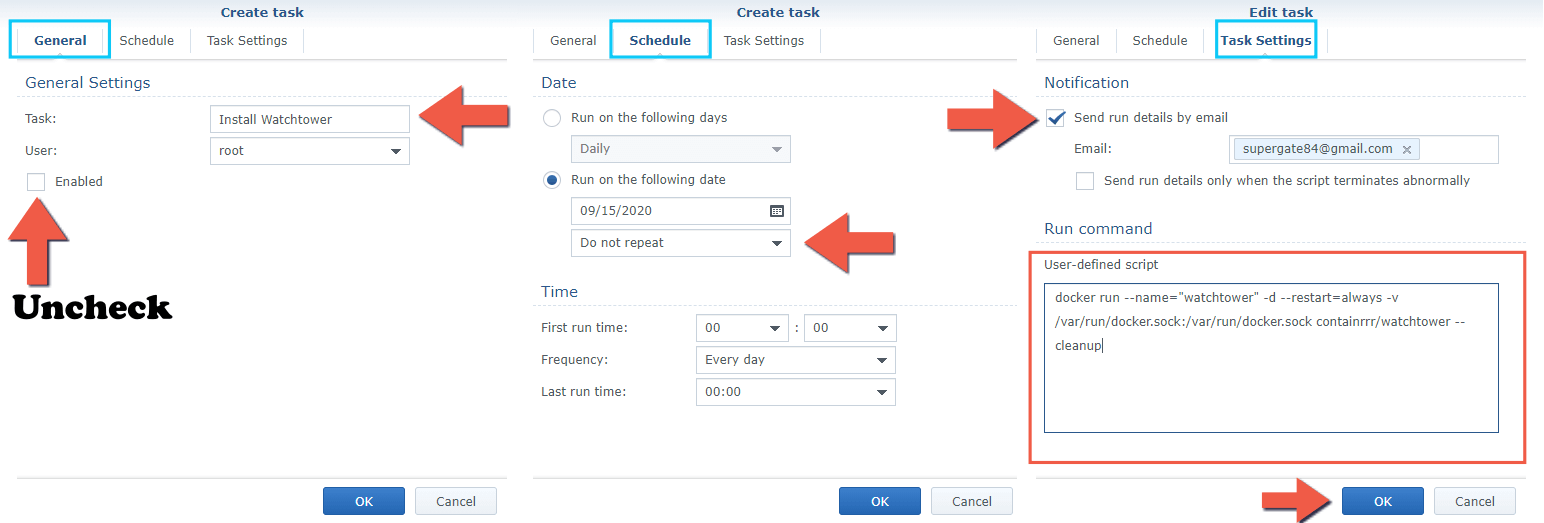
docker run --name="watchtower" -d --restart=always -v /var/run/docker.sock:/var/run/docker.sock containrrr/watchtower- Run the task
install portainer agent
- Name and update endpoint
- Update default /var/lib/docker/volumes to /volume2/@docker/volumes
- Update default portainer_agent_data to /volume2/docker/portainer_agent

- run the following command as root
sudo su -

docker run -d -v /var/run/docker.sock:/var/run/docker.sock -v /volume2/@docker/volumes:/var/lib/docker/volumes -v /:/host -v /volume2/docker/portainer_agent:/data --restart always -e EDGE=1 -e EDGE_ID=68bf167d-ffdf-4fc5-beea-dbf2e724249 -e EDGE_KEY=aHR0cDovLzE5Mi4xNjguMS4xMDo5MDAwfDE5Mi4xNjguMS4xMDo4MDAwfDY1OjJlOjFmOjNiOmQ1OjVhOjQxOjhkOjUxOmU3OjhmOjI1OmRhOjRkOjQ5OmNifDM -e CAP_HOST_MANAGEMENT=1 --name portainer_edge_agent portainer/agent
Note: Portainer must now expose port 8000 Portainer communicates with the edge agent over port 8000; through this port the edge agent can poll the Portainer instance, connect to Portainer, see when it is needed & initiate a tunnel or receive config updates. Without port 8000 exposed on Portainer, you cannot access the edge endpoint. If you already have Portainer deployed, you need to redeploy with port 8000 exposed alongside the port used to access Portainer.
Homeassistant Installation of Portainer Agent
- Open terminal window and login as root
- Install Portainer
- Use same procedure above in Portainer to create a new endpoint
- Replace the volume location as follows
- -v “${HASSIO_DATA}”:/data \
docker run -d -v /var/run/docker.sock:/var/run/docker.sock -v "${HASSIO_DATA}":/data -v /:/host --restart always -e EDGE=1 -e EDGE_ID=fddf77ef-2877-4a70-8728-8c05db5a3262 -e EDGE_KEY=aHR0cDovLzE5Mi4xNjguMS4xMTA6ODEyMy9hMGQ3Yjk1NF9wb3J0YWluZXJ8MTkyLjE2OC4xLjExMDo4MDAwfDQ0OmYwOjZlOmMwOjc0OjFhOjA4Ojk3OmE5OmQxOjcxOjE2OjY3OmFjOjQ2OmM3fDI -e CAP_HOST_MANAGEMENT=1 -v portainer_agent_data:/data --name portainer_edge_agent portainer/agent
References
- https://mariushosting.com/how-to-install-portainer-on-your-synology-nas/
- https://downloads.portainer.io/edge_agent_guide.pdf