Welcome to our Knowledge Base
Parents Guide to Start Protecting your Family Online
Summary Steps
- Check Your Family Activity
- Establish Safety Boundaries and Goals
- Select Parental Controls that Support Goals
- Put Controls in Place and Monitor Results
Check Your Family Activity
This will help inform your decision about want devices and applications should be managed more closely and which are not used or present little risk to your family. You can get a pretty good idea about where to start by:
- Looking at router network activity
- Looking at device activity for each family member
- Talking with each family member about online use and needs
Some routers provide great usage analysis. Ubiquity, as showen below for example, provides detailed usage data for each type of network traffic, application and user of each device.

Goal: Identify the devices, applications that expose each family member to risk.
It can be useful to profile your family in a table (See example below) of your findings to identify the best ways to control risks.
| Name | Devices Used | Apps Used | Key Areas of Risk |
| Dad | Laptop, iphone | Work networks, online accounts, Home Automation | Password, financial, and personal information phishing. |
| Mom | Laptop, iphone | Youtube, Microsoft Store, Work networks, online accounts, Instagram, Facebook | Password, financial, and personal information phishing. |
| Teenager | Laptop, Android, Xbox | Youtube, Microsoft Store, Google Play, Snapchat, Instagram, Facebook | Physical and emotional over-exposure Predatory Concerns, Unauthorized purchases, |
| Elementary School | iPad, Youtube | YouTube, AppleStore | Physical and emotional over-exposure Predatory Concerns, Unauthorized purchases, |
Establish Fair Boundaries and Goals
Everyone is exposed to certain risks on the internet. Everything from risks posed by exposing personal and credit information among adults, to child predatory risks among children, to the potential self-inflected emotional and physical impact of simply spending too much time online. While we are often most concerned about the risks and negative effects of our children being on the internet too much.
Blocking access is not the answer. Instead, talk with your child and establish fair boundaries so that they can have a positive experience, and more importantly, that they feel comfortable coming to talk to you about something if they are worried or have a question that needs answered.
Goal. Come up with clear, simple goals that best protect your family. Some examples follow to start
- Set an overall online limit per person
- Set content restrictions by age
- Set monitoring and review schedules
- Discuss goals and incentives to capture compliance
Below are some practical guidelines from Internet Safety 101 to help you establishing age appropriate goals for your family.
- Two- to Seven-Year-Olds
- Eight- to Ten-Year-Olds
- Eleven- to Thirteen-Year-Olds
- Fourteen- Eighteen-Year-Olds
Application specific guides are also available from Internet Safety 101 below:
Develop a Practical Family Media Plan

By creating a Personalized Family Media Use Plan, you can be aware of when you are using media to achieve your purpose. This requires parents & users to think about what they want those purposes to be. The tool below will help you to think about media & create goals & rules that are in line with your family’s values. HealthyChildren.org from the American Academy of Pediatrics has an easy and practical age-based tool to help families create and agree on a plan including discussion topics with “check box” fields such as:
- Screen Free Zones
- Screen Free Times
- Device Curfews
- Media Choice
- Balancing Time
- Digital Manners
- Citizenship and Safety
- Sleep and Exercise

AAP Screen Time Recommendations
- For children younger than 18 months, avoid use of screen media other than video-chatting. Parents of children 18 to 24 months of age who want to introduce digital media should choose high-quality programming, and watch it with their children to help them understand what they’re seeing.
- For children ages 2 to 5 years, limit screen use to 1 hour per day of high-quality programs. Parents should co-view media with children to help them understand what they are seeing and apply it to the world around them.
- For children ages 6 and older, place consistent limits on the time spent using media, and the types of media, and make sure media does not take the place of adequate sleep, physical activity and other behaviors essential to health.
- Designate media-free times together, such as dinner or driving, as well as media-free locations at home, such as bedrooms.
- Have ongoing communication about online citizenship and safety, including treating others with respect online and offline.
Technology Can Help Support Your Goals
- Usage Controls – which can limit the time spent accessing content or preventing specific types of use.
- Content Filters – which can prevent a child from accessing content that is age restricted.
- Monitoring – which can detect locations and activities when using a specific device.
- Computing Use Management Tools – which can enforce the usage of specific software
Six Useful Parental Control Sites
1. Comcast and Xfinity xFI

2. Microsoft
Great for monitoring and managing access to and spending on microsoft devices, applications, games, and content online portals.

Step-by-step guide from ESRB.
3. Apple Devices
Use parental controls on your child’s iPhone, iPad, and iPod touch
With Content & Privacy Restrictions in Screen Time, you can block or limit specific apps and features on your child’s device. And restrict the settings on your iPhone, iPad, or iPod touch for explicit content, purchases and downloads, and privacy.

4. Google and Android 10 Devices

5. Norton Family Online
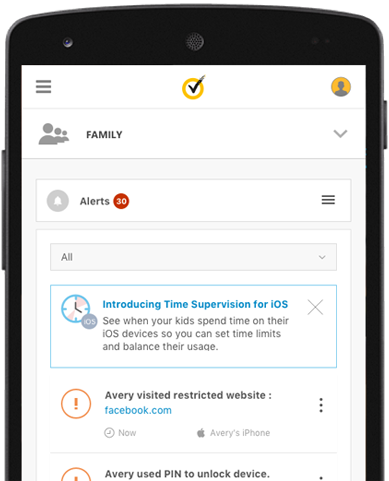
Norton Family helps you supervise your kids’ online activities. It blocks unsuitable sites while your kids are surfing the Internet, lets you see what websites they’re visiting, sets limits for their online time and more.
For a limited time, get Norton Family free for 6 months, no credit card is required. Simply create an account and start setting up Norton Family.
Zift

References
- https://www.rsaconference.com/writable/files/about/ebook-parents_guide_to_protecting_your_family_online.pdf
- https://www.fosi.org/gdppresentation/
- https://internetsafety101.org/agebasedguidlines
- https://www.healthychildren.org/English/media/Pages/default.aspx#home
- https://www.esrb.org/tools-for-parents/parental-controls/
- https://www.webwise.ie/parents/parental-controls-2/
- https://www.parents.com/kids/safety/internet/best-apps-for-parents-to-monitor-and-limit-screen-time/